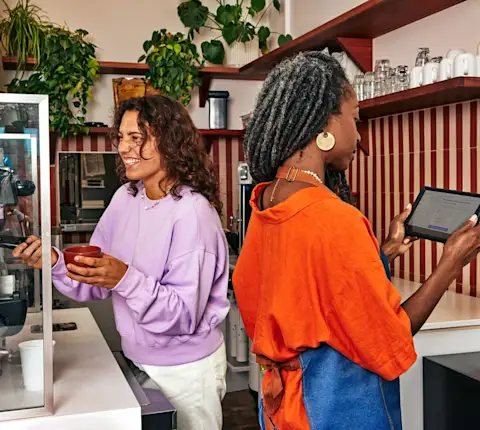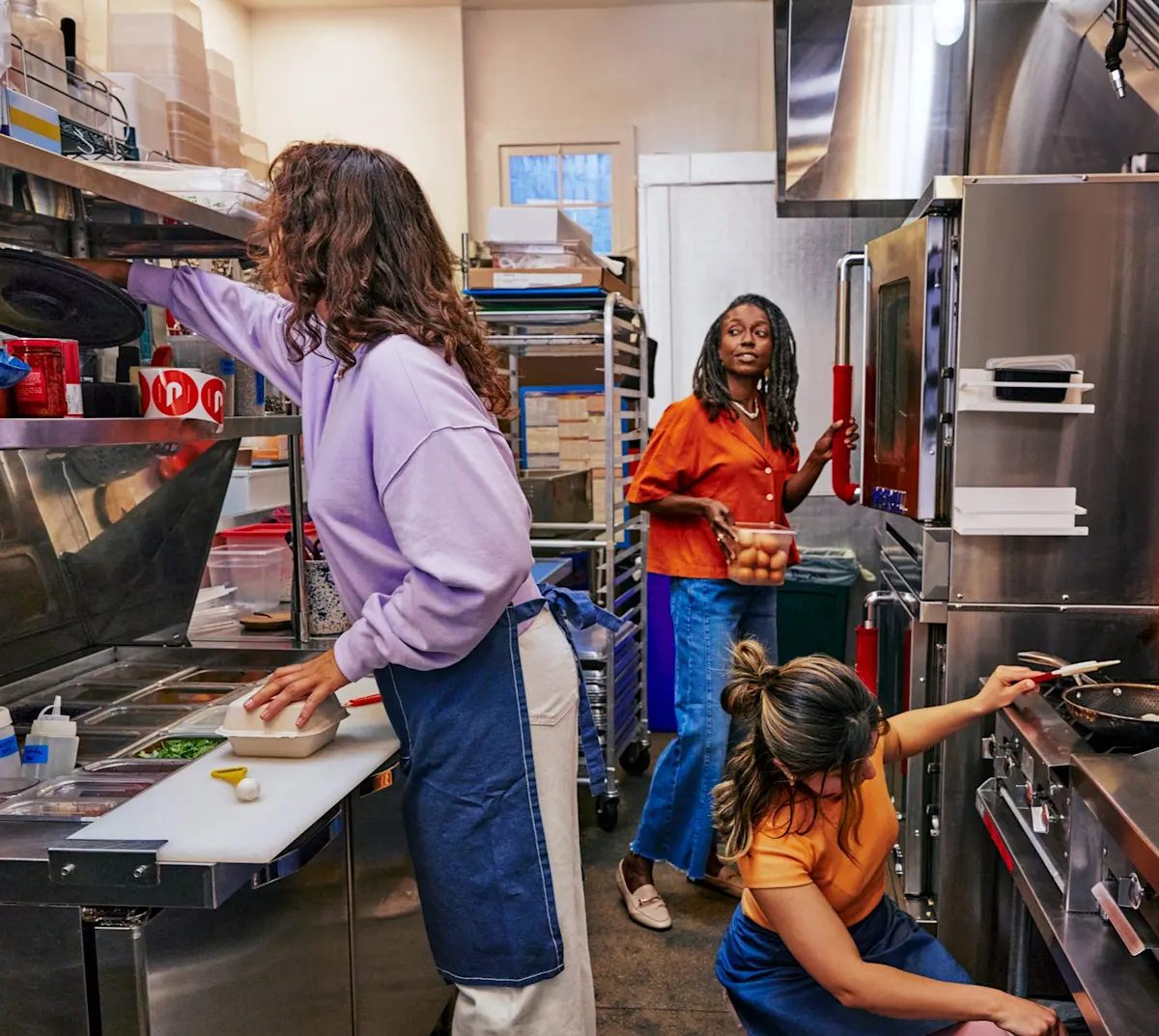
Your team will typically complete two types of tasks, depending on their role:
Operational tasks: Managing your store in the Merchant Portal, such as updating menus, setting hours, managing users, and reviewing payouts
Order management tasks: Accepting, preparing, and fulfilling orders using your point-of-sale (POS) system, DoorDash Tablet, or the Business Manager app
Understanding which tools each role uses helps you focus training on the right workflows.
How does my operations team set up and manage the store?
Before you start accepting orders, your operations team should be familiar with the Merchant Portal and the following setup steps:
Add team members and set permissions: Create user accounts and assign appropriate access levels based on each person's responsibilities
Navigate the Merchant Portal: Learn where to find key sections used to manage your store, including menus, hours, users, and payouts
Enter store details: Confirm your store information, hours, and pickup instructions so customers and Dashers have accurate details
Add or update your menu: Add, edit, and organize items, photos, categories, and modifiers — remove unavailable items as needed
Set up payouts and statements: Activate daily payouts, review how canceled orders are paid, and download monthly statements
Once setup is complete, your team can continue managing day-to-day updates in the Merchant Portal as needed.
How does my team accept DoorDash orders?
How your team accepts orders depends on the order protocol you selected during signup. Common options include:
DoorDash Tablet: Accept and track incoming orders in real time using a DoorDash Tablet
POS integration: Orders are sent directly to your POS system, allowing your team to manage orders alongside in-store sales
Email or fax: Orders are received by email or fax and must be monitored by a designated team member. That person will then:
Enter the order into the POS system, or
Write a ticket for the kitchen staff
Make sure the team member responsible for monitoring orders knows when and how to acknowledge new orders.
How does my team manage and fulfill orders?
Once orders are coming in, your team should know how to:
Receive orders: Accept orders manually or automatically through the tablet or POS system
Manage orders: Update pickup instructions, fulfill orders, or cancel a live order when needed
Adjust orders: Change pickup times, contact a customer or Dasher, or resolve issues such as out-of-stock items
Clear ownership of these tasks helps reduce delays and order errors.
What should I do if my store gets too many orders?
If your kitchen becomes overwhelmed, there are several ways to help your team manage order volume:
Set accurate prep times: Adjust prep times based on order size and current capacity so customers and Dashers receive realistic pickup estimates
Mark your kitchen as Busy: If you use a tablet, setting your kitchen status to Busy automatically adds extra prep time to new orders
Update item availability in real time: Mark out-of-stock items as unavailable as soon as possible to prevent order issues
Pause your store if needed: Temporarily pausing orders can help your team catch up
Use this sparingly, as frequent or extended pauses can affect store performance and sales
How can I prepare my team for busy days?
To reduce stress during expected busy periods:
Plan staffing and prep levels ahead of known high-volume days
Review prep times and menu availability before service begins
Make sure all team members know how to adjust order settings or ask for help if issues arise
Preparing in advance helps your team respond more confidently when order volume increases.
What are best practices for DoorDash order handling?
Share these best practices with your team to support smooth operations:
Confirm orders promptly: Accept orders as soon as possible so customers know their order is being prepared
Quote accurate prep times: Late orders are a common cause of poor ratings, so choose realistic pickup times
Ensure hours are correct: Match your DoorDash hours to your actual store hours and add Special Hours for holidays or events
Label orders clearly: Clearly labeled orders help Dashers pick up the correct items
Check modifications and special requests: Review order details carefully to avoid mistakes
Update Dasher instructions: Add clear parking and pickup instructions in the Merchant Portal, especially if your store is hard to find
Who can I contact for more training support?
For further training assistance, you can either:
View the Learning Center to find walk-throughs, tutorials, videos, and more
Contact Merchant Support from the Merchant Portal