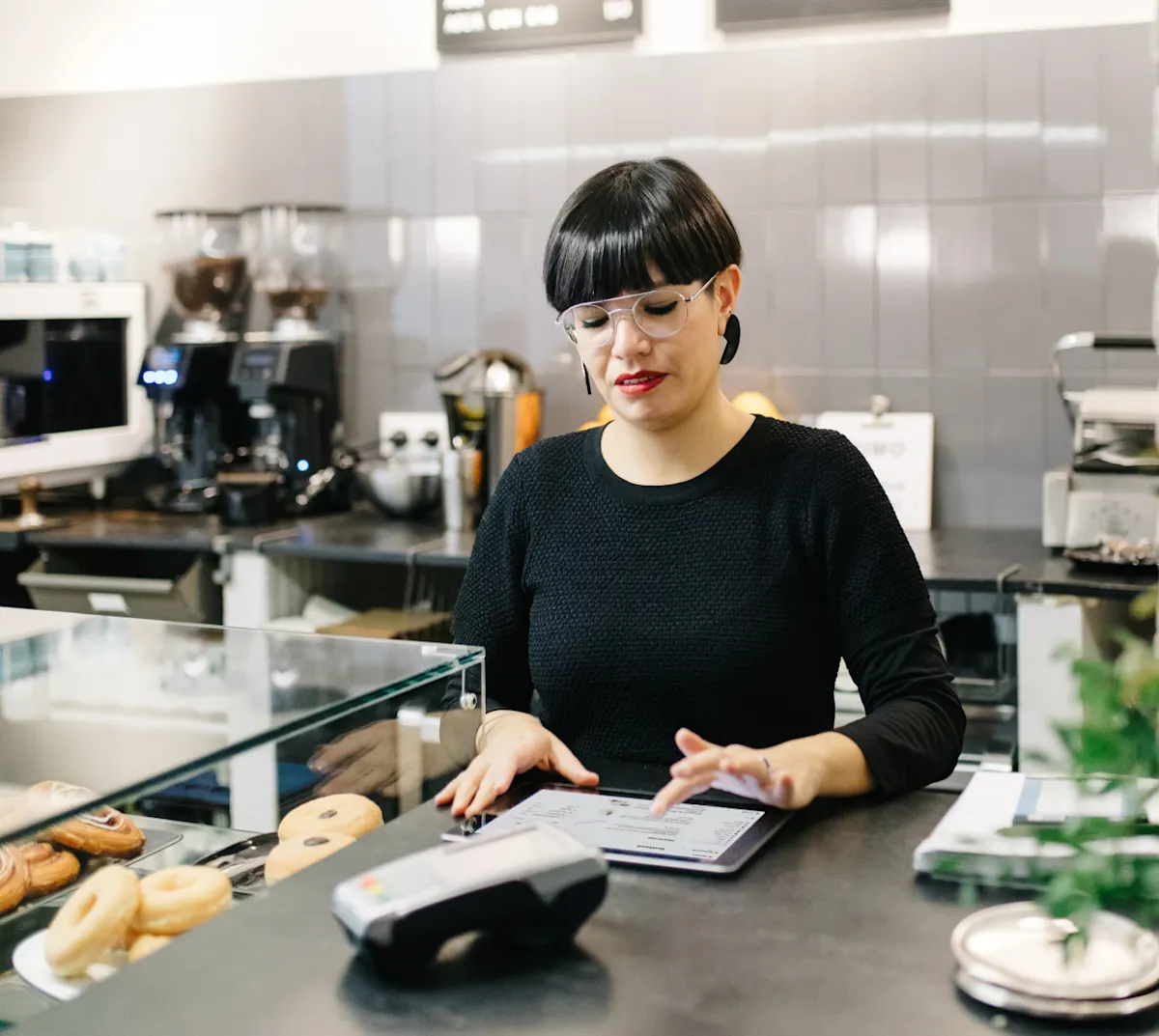
What can I manage on my DoorDash Tablet?
You can use your DoorDash Tablet to:
Adjust store hours for specific dates
Update your kitchen status during busy periods
Manage sidebar settings and alerts
Switch between multiple menus
Set up and connect a printer
How do I adjust store hours?

To add special hours or temporary closures in your DoorDash Tablet, head to Store Hours in the sidebar menu:
Review your regular hours in the left column
Tap Add Special Hours or Closures
Tap Select Dates, choose a date option, then tap Next
Select Open with Special Hours or Closed
Tap Next, then set Store Open or Store Close times
Click OK, then Next
Review the details and tap Confirm Special Hours
Permanent hour changes must be made in the Merchant Portal.
How do I update my kitchen status?
If your kitchen is running behind, you can slow or pause incoming orders by tapping on the menu (hamburger) icon on the top left corner.
Click on the Status button on the Order Manager screen
If you select Busy

You can choose how much additional prep time is added to your orders
If you select Pause

You can select how long orders will be paused, and on which channels
How do I manage my sidebar menu?
Access your sidebar menu by tapping on the menu (hamburger) icon to access the sidebar.
In Settings, you can:
Turn automatic order confirmation on or off
Adjust the volume of new order alerts
Create a test order
Toggle Dasher arrival alerts
Set up printer and tablet battery alerts
Under Order History, you can:
View up to 100 orders from the last seven days
Orders older than seven days are available only in the Merchant Portal
How do I manage multiple menus?
If you use different menus by time or day, tap the dropdown arrow next to your menu name to switch between available menus.
How do I set up a printer and connect it to my DoorDash Tablet?
If you selected a printer during sign-up, pair it with your tablet using Bluetooth.
Turn on your printer and tap Set up printer
Tap OK to allow Bluetooth access
Tap Allow when prompted
Under Available Devices, select your printer
When pairing is complete, you'll see "Cover is closed, ready to use" under Printer in Settings.