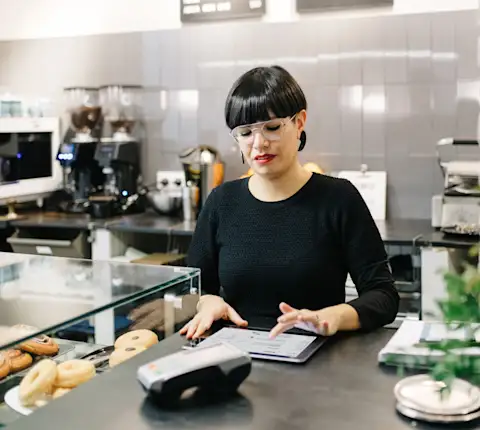
What is the Business Manager app?
The Business Manager app allows merchants to manage active orders directly from their phone — no matter where they are. It uses your Merchant Portal credentials to log in. With the Business Manager app, you can:
Update your menu
Add new items, photos, and descriptions
Track live orders
Manage in-progress orders, Dasher status, location, and arrival time
Manage orders
Get notifications and view incoming orders, adjust prep times, give refunds, mark items out of stock, cancel orders, and make substitutions
Manage store availability and hours
Update store hours, closures, and more for all of your locations on DoorDash
Access daily business data
View daily, weekly, and monthly performance reports
Run campaigns
Start, edit, and view campaigns
How is the Business Manager app different from my POS?
Your Point-of-Sale (POS) System stores some of your store information instead of on the DoorDash manager app. This means that your user experience will differ for certain actions and updates.
Use your POS system to:
Update your menu (items, modifiers, and photos)
Change menu and store hours
Mark items out of stock
Use your DoorDash Business app to:
Receive push notifications
Track business health
View active orders
Call customer, Dasher, or support
How do I install the Business Manager app?
Download the app by:
Scanning the QR code below
Visiting the App Store or Google Play Store
Once installed, tap Open to launch the app for the first time.

How do I manage notification preferences?
When you first install the app, you'll be prompted to allow notifications. Select Allow to receive full functionality. If you select Don't Allow, you can re-enable notifications in your device Settings menu.
You can update notification preferences anytime by selecting the profile icon, then Notifications.
The app supports two types of push notifications:
Sales Recap notifications
Sent daily between approximately 12–1 pm (Pacific time)
These notifications show complete data from the previous day, including sales, orders, trends, and top-selling menu items
Store Status notifications
Sent in real time if your store is temporarily unavailable
This may occur due to:
A Dasher reporting your store as closed
A customer reporting special hours or a closure
High Dasher wait time
POS connectivity issues (if applicable)
How do I switch between locations?
If you manage multiple locations, the Home tab of your Dashboard shows aggregated metrics by default. You can confirm this by noting:
The business (or group name) on the top left
Your bottom navigation bar only shows four tabs (Home, Orders, Reviews, and More)
Use the store selector at the top of the screen to switch between locations and manage store-specific details.
How do I track my store's metrics?

You can track store metrics in the Home tab. From there, you can view Sales, Order Volume, and Top Selling Items in a specific time range:
Select one of the viewpoints from the top of the screen (today, yesterday, seven days, or 30 days)
For present orders, you can monitor sales in real-time by tapping the refresh arrow or analyze partial day trends
You can also view your optimization score by following these steps:
Click the Operations tab of the Store Overview
Scroll down to Optimize Your Business
Here, you can see the optimization score meter, how much of your sales potential is realized on DoorDash, and access your feed.
How can I view my payouts?

Open your store
Navigate to the More tab
Under Financials, tap on Payouts
View the list of payouts and tap on any payout row to view specific details
How do I update my store status?

From the Store tab, you can view and update your store's status:
Open Store
Store is open and receiving orders
Pause Store
Store is paused during open hours and isn't receiving orders
If your store is paused, you can choose to reopen it
Closed
Outside of open hours and isn't receiving orders
If your store is closed and you need to open it now or earlier than expected, you can add special hours and closures for the same day
Inactive
Store activation steps have not been completed, and isn't receiving orders, or has been marked as permanently inactive
Deactivated
Store was activated but is now inactive and isn't receiving orders.
Special Hours and Closures
Store is open for different hours for holidays or special occasions.
When you change your store status in the app, it'll be reflected on the tablet and in the Portal.
How do I update store hours?

From the Store tab, you can:
Edit regular menu hours
Add special hours or same-day closures
To edit hours, click on Edit menu hours below Regular Menu Hours. Choose your store, then tap Edit menu hours to edit.
To add special hours, and closures:
Tap the right-hand arrow
Locate the menu you want to edit and then click the pencil
Check the box next to the day(s) of the week you'd like to update and tap Next
Edit your hours
Tap Next and then Confirm
How do I update menu items?

Select Menu at the bottom of your homepage
Select Menu on the Menu Manager screen
Click on the menu you would like to edit — if you only have one store, you'll be taken directly to the menu
Select an item to edit. You can edit:
Name
Pickup and delivery prices
Description (the alcoholic tag is currently uneditable from the mobile app)
If the item is available or unavailable
How do I update menu modifiers?

To update the availability of a modifier:
Click on the Menu tab on the bottom of the homepage
Click Modifiers on the Menu Manager screen
Select the modifier you need to update — all items related to this modifier will automatically reflect this updated availability
If you're looking to remove a modifier instead, go to the Overview tab, tap on Menu Item, and click on the trash can icon of the modifier you'd like to remove
If you're looking to create another modifier, tap the plus (+) button and fill out the necessary information
In the Used in section, tap the Search Bar to find the items to add the modifier to
How do I update menu photos?

Upload photos to your menu directly from your mobile app with the photo upload feature.
To upload a photo:
Click on the Menu Manager tab on the bottom of your homepage
Click Menu
Select Add a photo or the placeholder gray box to add a photo from your existing library
Edit the photo in the Photo Editor and submit for review (approval may take up to three days)
How do I view active orders?

Upon opening the app, merchants can now access and view all their live orders from a single screen:
Log in using your Merchant Portal credentials
Tap Orders on the bottom navigation bar
A list of Active Orders is displayed at the top of the screen with order status, Dasher name, and prep time
Choose any active order to open the Order Details view
From there, you can adjust prep time, mark orders for pickup, refund or cancel orders, contact the customer or Dasher, and more.

If you're on mobile:
Select Active Orders on the left side
Choose the item you want to change
Tape Substitute Item, Refund, or Replace
For completed orders, toggle to History.
How do I substitute items?

Open Orders, select Active Orders
Select the item to replace
Tap Substitute item
Choose a replacement (including modifiers)
Click Confirm
If you’ve already confirmed the substitution with the customer by phone or chat, your change will automatically update their order and payment in the system.
How do I mark items out of stock?

You can mark items out of stock while managing an order or from the Menu Manager.
From an active order:
Select the item or modifier
Choose how long it will be unavailable
From Menu Manager:
Select the item
Mark it Out of stock
Choose a time range and click Confirm
How do I issue refunds for active orders?

Open Orders and select Active Orders
Select the order and item
Tap Refund item
Choose a reason and confirm
If the order has one item, the entire order is canceled. For multi-item orders, only the selected item is refunded.
For POS-integrated merchants, refunds may not immediately appear in your POS but will display correctly in the app.
Issue partial refunds or quantity adjustments:
If an order includes multiple quantities of the same item:
Select the item
Tap Refund or Replace
Choose the quantity affected
Click Confirm
How do I adjust preparation time?

Select the order you need to add time to
Tap the time in the upper-right corner
Use the toggles to add preparation time to this order
How do I mark an order ready for pickup?

Select the order
Tap the Ready for pickup button
You will be able to track Dashers in real-time before they arrive, and while they completing the delivery
How do I cancel a live order?

Non-POS merchants can cancel an active order directly from the Orders tab in the app:
Tap Cancel on the order
Select a reason and select Cancel order
Canceled orders aren't paid for, even if food has already been prepared. Customers are notified automatically. See here for more information on our cancellation policy.
POS merchants must contact support to cancel a live order.
How do I contact customers or Dashers?

Common reasons to contact customers or Dashers include:
Out-of-stock items
Clarifying special instructions
Order delays
Early or late Dasher arrivals
You can call or chat directly from an active order by:
Click on the Orders tab, then select Active orders
Choose the order
Select Contact Customer
Tap on Call Customer or Chat with customer
For order changes, select Contact Support from the top right of the order screen.
The tablet remains the primary tool for adjusting prep time or marking orders ready for pickup. The mobile app is a companion tool and doesn't replace live-order protocol.
How do I run campaigns?

To run a campaign in the Business Manager app:
Open your store in the app
Click on the More tab on the bottom right
Under Marketing, tap Run a campaign
Choose your campaign and click Select
Edit the details and then start your campaign
Once your campaign is live, you can keep track of it by heading to Marketing and selecting Campaign reporting.
How do I contact Merchant Support?

Access support from:
An active order (tap Contact Support)
The Support tab in the bottom navigation
You can start a new request or reopen recent conversations by selecting Recent Conversations. For active deliveries, choose Live Delivery to call or chat with Support.