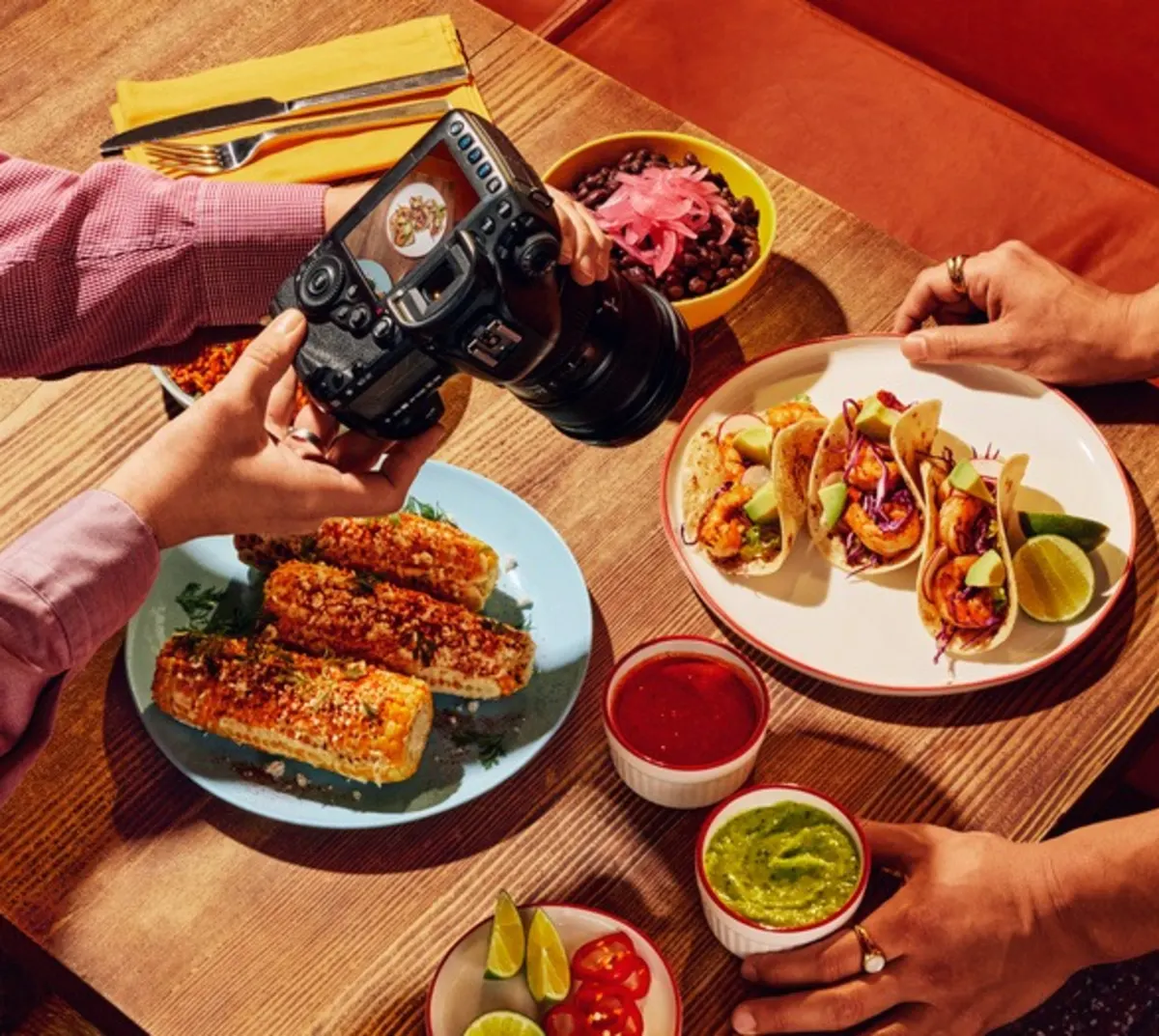
What is the aspect ratio?

The aspect ratio is the width of an image compared to its height.
DoorDash requirement
All menu photos must be landscape (16:9)
Menu photos must be thumbnail size (1:1)
Best practices
Even for naturally vertical items (like drinks), photos should be taken horizontally to ensure consistent formatting across the DoorDash app.
What is composition?

Composition is how elements are arranged within a photo. Menu thumbnails appear as a centered square. Centering your item helps ensure it displays correctly in all views.
Best practices
Center the menu item in the frame
Leave a light background space around the item
Ensure the full item remains visible when cropped
What is cropping?

Cropping removes unwanted parts of an image to focus on the subject.
Best practices
Keep the entire item visible and centered
Avoid cutting off any part of the item
Don’t crop so tightly that details are lost
What is exposure?

Exposure is how light or dark a photo appears.
Overexposed: Too much light; details are washed out.
Underexposed: Too little light; details are hard to see.
Correct exposure: Details are visible in both highlights and shadows.
What is focus?

Focus refers to how sharp and clear the subject appears.
Best practices
Photos should be clear and in focus
Customers should be able to easily see the item
Minor background blur is acceptable, provided the item itself is sharp
What is orientation?

Orientation refers to whether the photo is taken horizontally or vertically. There are two main types of photo orientation:
Landscape: photo is wider than it is tall, or "horizontal"
Portrait: photo is taller than it is wide, or "vertical"
DoorDash requirement
All photos must be horizontal (landscape).
Best practices
If you're using a phone, rotate it sideways before taking the photo. Vertical photos often lose key details when cropped to 16:9.
What is image resolution?
Resolution is the number of pixels per unit area in an image.
DoorDash requirement
Minimum resolution: 1400 × 800 pixels.
Photos below this size may be rejected.
How can the DoorDash Photo Editor help?

Using the DoorDash Photo Editor is the easiest way to make sure your photos meet DoorDash's photo requirements.
You can access the Photo Editor when uploading images to the Menu Manager of the Merchant Portal. In the Photo Editor, you can:
Auto-enhance lighting, color, and clarity
Crop images
Remove overlays, text, and watermarks
Adjust saturation, tint, contrast, and brightness
Apply new backgrounds
This tool only helps to improve images that are slightly under the requirement — it doesn't replace the minimum resolution standard.
What about DoorDash-added photos?
If a menu item doesn’t have a photo, DoorDash may automatically add one to help customers understand what they’re ordering.
These photos may come from a connected Instagram account or Yelp.
All DoorDash-added photos are reviewed using the same definitions and standards in this glossary.
You can remove or replace DoorDash-added photos by either:
Contacting DoorDash Merchant Support to opt out of the service
For Yelp photos, specifically:
Log into the Merchant Portal
Click on the item with a photo sourced from Yelp
Tap on the item photo to enlarge the image
Hover over the info icon
Click on Request Menu Help
Fill out the applicable information, the type in "Please opt my store out of receiving Yelp photos" in the box
Select whether you want to opt out immediately or at a later date, then click Submit
Why should I use DoorDash free photoshoots?
DoorDash free photoshoots provide eligible merchants with up to 20 images of their most popular dishes. Each image follows DoorDash’s photo requirements, such as:
Using natural lighting
Showcasing the entire dish
Ensuring the food looks appealing
Using clean, simple backgrounds
Merchants on the Premier pricing plan will receive a $200 credit towards professional food photography.*
*Premier Merchants who have not yet completed their DoorDash complimentary photoshoot are eligible to receive a $200 payment to cover food prep, setup, or other costs after completing their complimentary photoshoot. Premier Merchants that are outside of the DoorDash photoshoot service area are eligible to receive the $200 payment after uploading 10 approved photos to their menus. If a Premier Merchant has previously received a $300 incentive payment from DoorDash for uploading menu photos, they will not be eligible for this $200 payment. Amount of payments are inclusive of any applicable taxes.